


Get the WebLink Host Mobile App
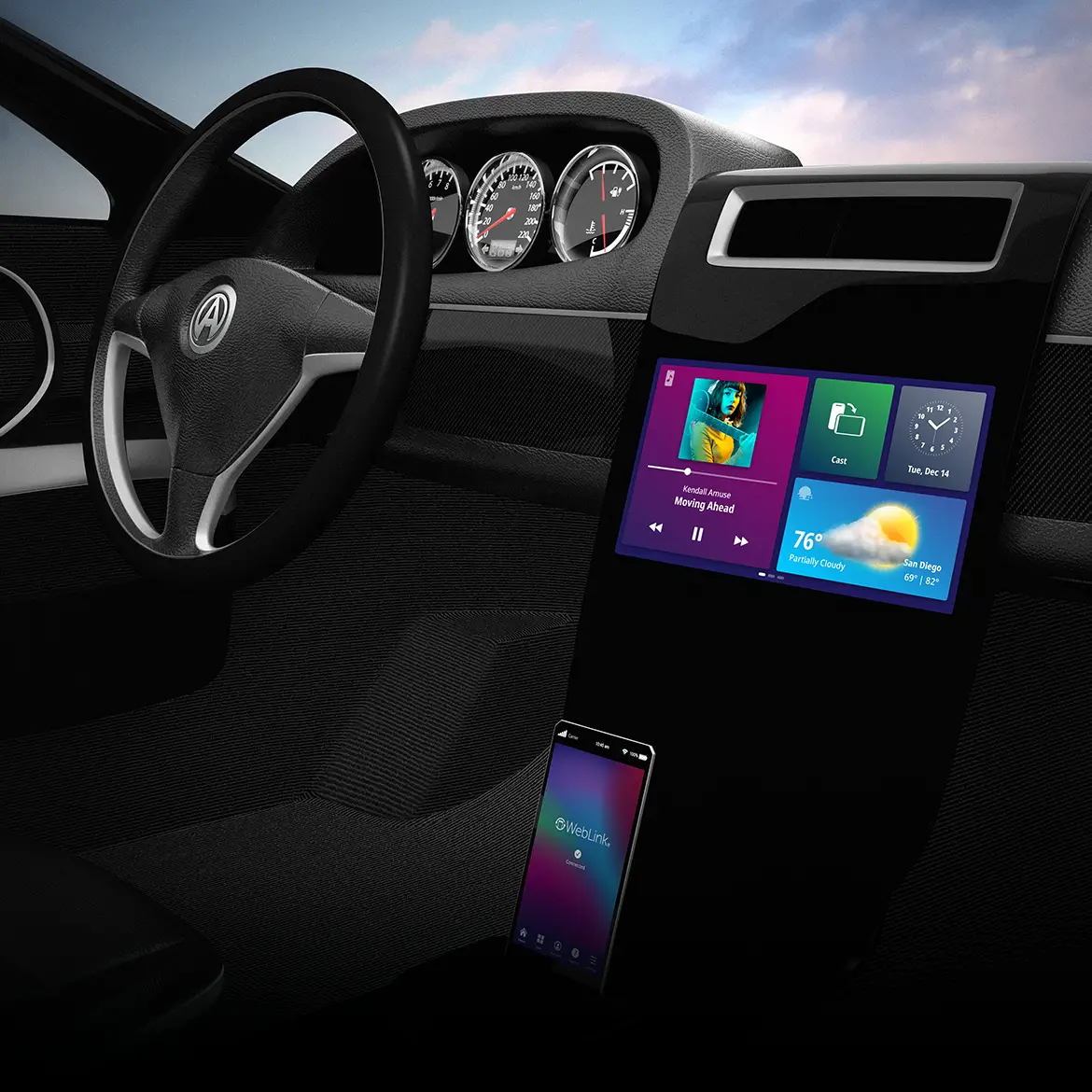
WebLink converts your vehicle into a connected car, allowing you to safely and easily enjoy your favorite smartphone apps on the go. Personalize your experience with any vehicle, anytime, anywhere.


Introducing WebLink
Vehicle screen manufacturers may restrict the use of certain apps. App availability may vary by region.
WebLink Quick Start Guide
Step 1: Download and Install the WebLink Host App
iOS
- Open the App Store, Search and Download WebLink Host
- Open the app and Accept the Terms and Conditions
- Allow Permissions for:
- Location: “Allow While Using App”
- Calendar: “Allow Full Access”
- Photos: “Allow Full Access”
- Media & Apple Music: “Allow”
Android
- Open the Google Play Store, Search and Download WebLink Host
- Open the app and Accept the Terms and Conditions
- Allow Permissions for:
- Location: “While using the app”
- Background Services: “Allow all the time”
- Calendar: “Allow”
- Files and Media: “Allow all”
- Nearby Devices: “Allow”
- Overlays: Enable ‘Appear on top’
- For Xiaomi/Huawei users:
- Enable Background Activity in battery settings
Step 2: Connect Your Smartphone to the Vehicle
- Use a certified USB cable that allows for both charging and data transfer to connect your phone to the vehicle’s USB port
- Ensure Bluetooth is turned ON (Manually pair your phone to your vehicle’s display, if necessary)
- Tap WebLink on your vehicle’s display and wait for all apps to download on your phone
- Keep the WebLink Host app open and in the foreground of your phone
Tutorials
Connection Guide
- Download WebLink Host on your smartphone.
- Launch WebLink on your smartphone and accept the Terms of Service.
- Connect your smartphone to your vehicle screen with a certified USB cable. Follow your vehicle screen’s manual to locate the correct USB port.
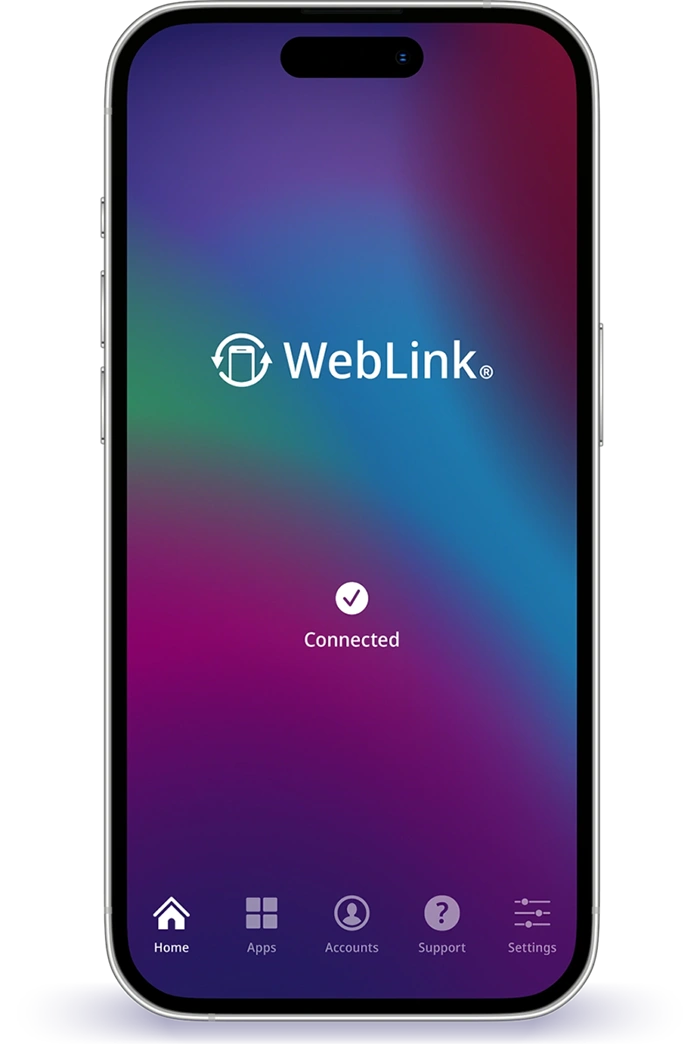
- Keep your smartphone unlocked and WebLink open in the foreground to maintain the connection.
- Additional steps may be necessary, depending on your smartphone or vehicle screen.
Frequently Asked Questions
Troubleshooting
Are you experiencing difficulties? Try the steps below.
Need Help?
Get in touch. We’re here to help!